Official Manual / Getting Started
Shadowrocket Setup Guide
Add an existing subscription, choose Global Routing, then connect and verify.
This guide covers initial setup on iPhone and iPad. First establish a connection you can verify, then adjust rules and other settings. Each step includes a clear result to check.
Setup sequence
Home → Add Server → Global Routing → Connection switch → Connectivity Test
Check your inputs first, then confirm how requests are routed. Server entries, configuration files, and connection status are three separate things to check.
Step 01 / Add Server · Subscribe
Add a server or import an existing subscription
When you finish this step, a selectable server entry should appear in the SERVER group on Home.
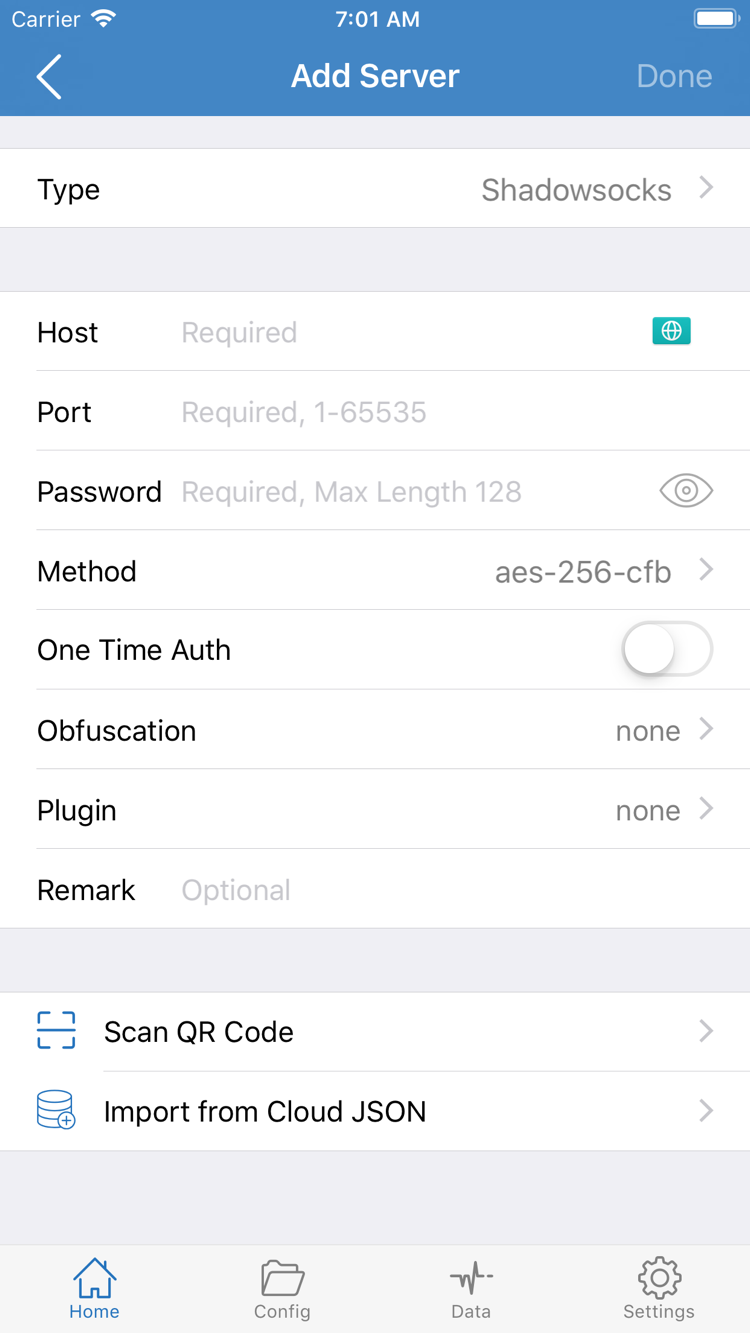
Open Shadowrocket, go to Home, and find Add Server under the SERVER group. You can also use the add button at the top of the screen. In Add Server, check Type first rather than entering Host straight away. Type determines which fields you need, and separates subscription imports from manual setup. You can leave the connection switch off during import so you can check whether the details load separately from whether the server connects.
Have a subscription link? Use Subscribe
Choose Subscribe under Type, paste your subscription link into the URL field, and enter a name that will help you identify it. The name is for local reference and does not change the link. Before saving, check that the link has no leading or trailing spaces, line breaks, or text added by a messaging app. Do not use the address of an informational webpage in place of a subscription link. A subscription URL may contain private access credentials. Keep all parameters intact, but do not share the link publicly.
After saving, return to Home and wait for the subscription to load, then expand its group to view the server list. Seeing a subscription name does not necessarily mean its servers have loaded; check that the group contains actual entries. If the list is empty, check whether your network can reach the subscription URL, whether the link is still valid, and whether the response contains subscription data the app can recognize. To fetch it again, use the update option in the action menu for that subscription. Its location may vary between app layouts; follow what you see in the current app.
Have server details? Enter them field by field
If you have details for a single server, choose the Type specified by your provider in Add Server, then check Host and Port. Host is usually a server domain name or IP address; do not append a webpage path. Port must match the server configuration. Password and Method in the screenshot apply to that particular Type. Other Types may have different authentication and transport options. Do not put a value in the name or password field just because its intended field is not currently visible.
Enter each detail, such as the password, UUID, TLS, and transport settings, according to your own server information. Do not copy values from unrelated entries. If you have a supported QR code, use Scan QR Code in Add Server and grant the requested permission when prompted. Import from Cloud JSON is for configuration data in the corresponding format, not a general-purpose subscription import. For a standard subscription link, use Subscribe.
After saving, return to Home, confirm the entry appears, and select the one you want to use. A subscription group may contain several entries; for this guide, select one to verify. Avoid repeatedly changing settings for multiple servers at this stage. If anything is unclear, note which fields are missing and consult the Glossary. Once you have selected an entry, check Global Routing to decide how requests will use it.
Step 02 / Global Routing · Config
Choose Global Routing: three modes
Server details determine where to connect; Global Routing and rules determine how requests are handled.
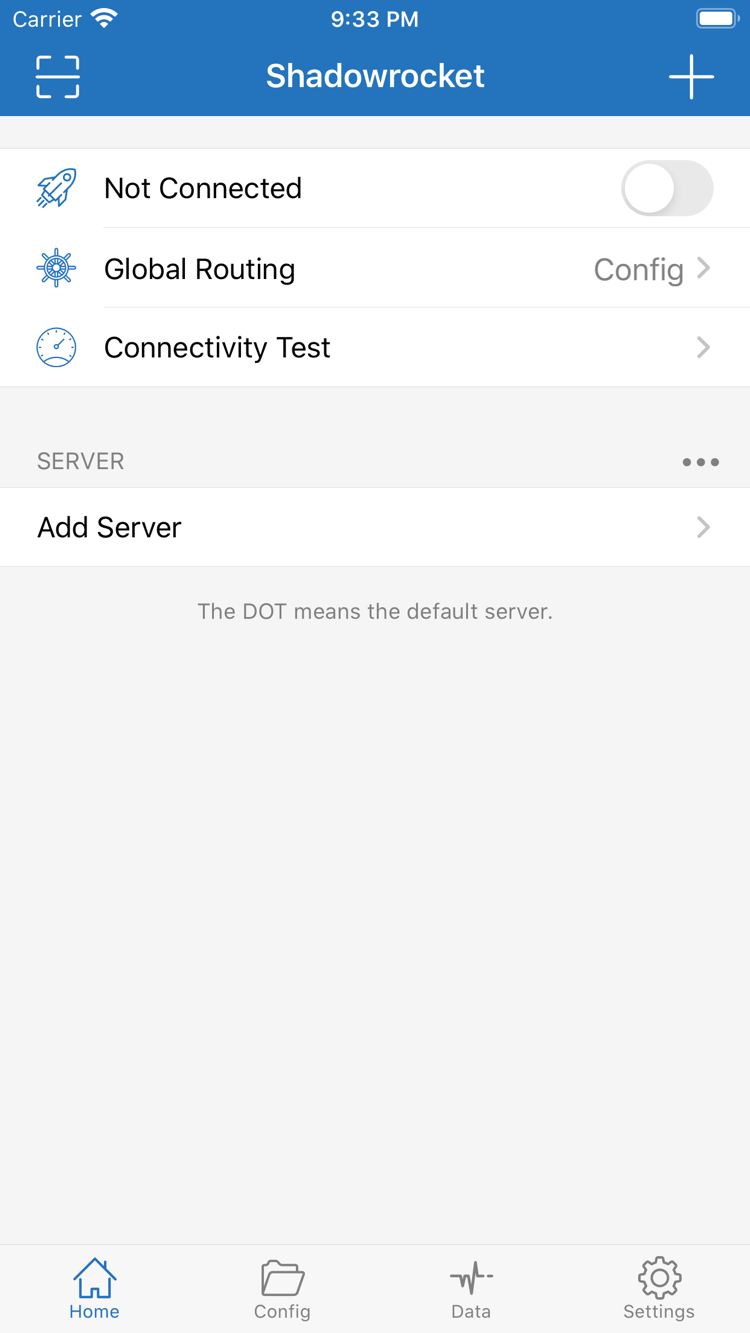
Return to Home and tap Global Routing. Choose between Config, Proxy, and Direct. After making a selection, return to Home and confirm that the selected mode appears on the Global Routing row. Changing modes does not add server details or fix invalid authentication, so complete the first step before changing modes.
Config: Follow the active configuration file
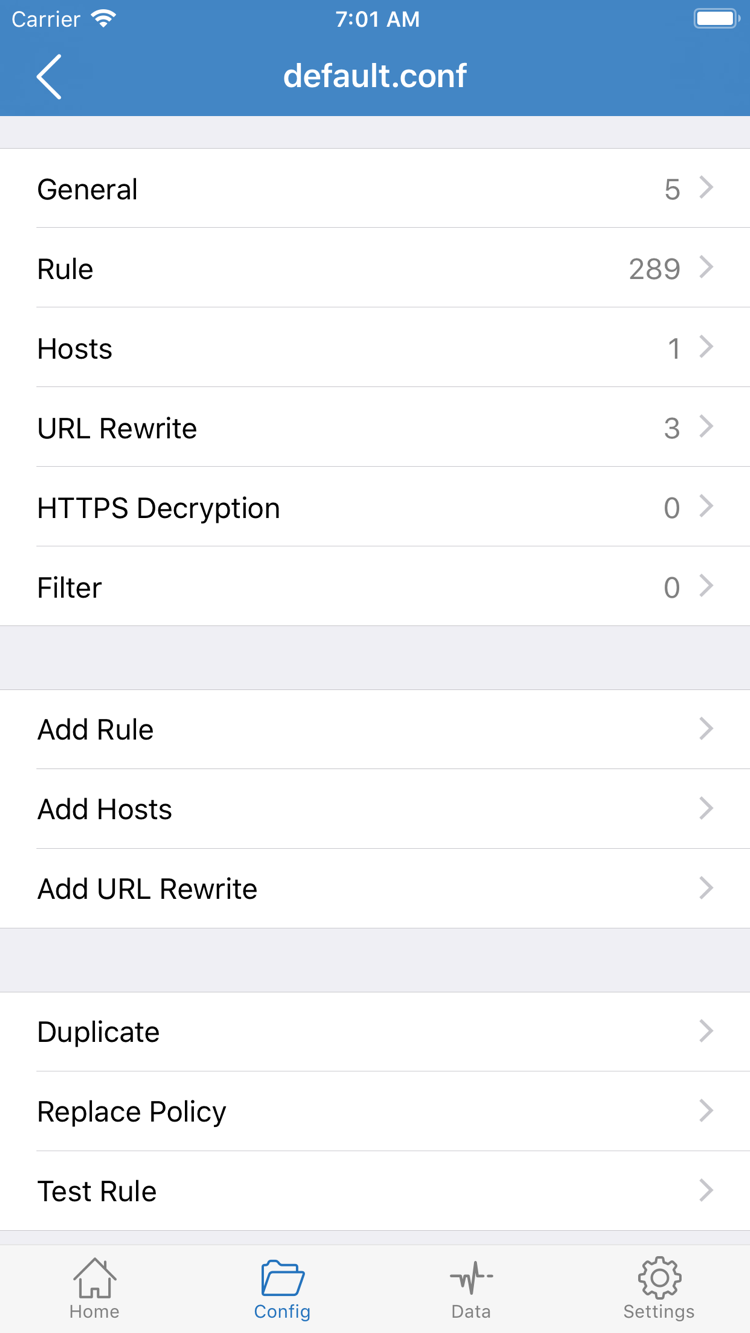
Config applies rules from the currently active configuration file. Open Config and check which file is selected. Inside the file, you can find sections such as General and Rule. Specific rules in Rule usually go before the fallback rule. A match determines whether a request uses PROXY, DIRECT, or another defined policy. If the configuration refers to a policy group, check its selection too; choosing a server on Home alone does not mean every policy is pointing to the right place.
This configuration syntax snippet illustrates rule order. It is not a complete configuration file and contains no server details. In this example, domain requests matching example.com use PROXY, while requests that do not match another rule fall through to FINAL,DIRECT. Before testing, inspect your own file rather than replacing it with this example.
[Rule]
DOMAIN-SUFFIX,example.com,PROXY
IP-CIDR,192.168.0.0/16,DIRECT
FINAL,DIRECT
Check the subscription list and rules file separately. Subscribe usually fetches server entries; it does not mean that rules suited to your needs are already active. For your first setup, confirm that the active file comes from a configuration source you understand, then check which rule will match the target you plan to test. Avoid importing a large set of unfamiliar rules at once, or it will be difficult to tell whether a failed request is caused by the server or the rule match.
Proxy and Direct: Know what you are testing
Proxy routes requests covered by proxy handling through a proxy path and can help you check whether the selected server is working. The scope of system traffic and other settings can still affect the result, so do not assume every request will use the same path. Direct uses a direct connection and is not a way to verify whether a proxy server is working. To compare the two modes, use the same destination on the same network without changing other conditions.
If you want everyday rule-based routing, confirm the configuration and continue with Config. To isolate the effect of rules, you can temporarily use Proxy for comparison, then restore your intended mode when finished. You do not need to adjust every DNS, rule, and policy group detail before your first connection. For a closer look, see Settings and Configuration Guide.
Step 03 / Home · Connection
Turn on the connection switch and complete system authorization
Check the selected server and mode on Home before handling any system prompts.
Return to Home for a quick check: confirm the server selected in SERVER is the one you intend to test, and that Global Routing shows the mode you chose in the previous step. If you are using Config, confirm the active configuration file too. The official screenshot shows Not Connected at the top, which means no connection has been established. The appearance of server entries below does not mean the connection is active.
Turn on the connection switch at the top of Home. The first time a connection is established, the system may ask to let Shadowrocket add a VPN configuration. This system authorization lets the device route the relevant network requests through the app. Confirm which app the prompt refers to, continue as instructed, and complete any authentication required by your device. Enter system verification details in the system interface, not in the Password field in Add Server.
After authorization, return to Shadowrocket and check whether the connection status at the top has changed. If you dismiss the prompt, the switch may turn off again. In that case, complete authorization rather than changing the subscription URL. If no prompt appears, that is not necessarily a problem; the device may already have the configuration. Check the current status and VPN settings in the system rather than repeatedly deleting configurations while waiting for a prompt.
Before testing, make sure another configuration is not already managing the same type of network connection on your device. If switching configurations could affect the current connection, note the current state first, then check which configuration is active in system settings. Devices managed by a workplace or school may have additional restrictions on VPN configurations. Follow the device management requirements; do not treat a system restriction as an incorrect server password.
Once the connection status changes, leave your selections in the app as they are and move on to verification. An enabled connection switch indicates that the local connection process has advanced, but does not by itself prove that remote authentication, DNS resolution, and access to every destination are working. Check the client status alongside actual requests to determine whether the setup is working as expected.
Step 04 / Connectivity Test · Requests
Verify test results and actual access
Assess test completion, connection status, and destination availability separately.
Run Connectivity Test from Home, wait for it to finish, then review the result for the relevant entry. What a result means depends on the test method: some tests focus on establishing a connection, while others involve a request to a specified destination. Results can reveal entries that are clearly unreachable, but they do not verify every aspect of app access. Do not judge real-world performance by a single number.
Next, open a browser and visit a destination you know should be available. Confirm that the page content and required resources load. If you are checking the proxy path, choose a destination that your active configuration will actually route through PROXY. In Config mode, a page that happens to match DIRECT does not prove the proxy server is working, even if it opens successfully. Make sure the test destination matches the routing behavior you expect.
For a comparison, keep the destination and device network the same, and record what happens before and after connecting or changing modes. Change only one condition per test—for example, switch from Config to Proxy, then make the request again. Do not change the server, switch networks, modify DNS, and update rules all at once; even if things improve, you will not know which change made the difference.
Browser cache, existing persistent connections, and an app's own network behavior can affect what you observe. Reload the page, or close it and reopen it if needed. A page that remains visible is not proof that a new request succeeded. A webpage loading successfully also does not mean every app or protocol will be handled in the same way. Use the actual feature in the app you care about as the final check.
If Connectivity Test returns a result but the page still fails to load, focus next on Global Routing, the matched policy, DNS, and the destination itself. If both the test and actual access fail, start by checking the server details and current network. Note which stage failed; that is more useful than repeatedly toggling the switch. For details on test methods, see Test and Ping Settings. For other terms, see the Glossary.
Step 05 / Settings · Diagnostics
Troubleshoot by failure stage: check your settings
Identify which layer is causing the issue before deciding whether to change a setting.
No server entries after import
Go back to the first step and check that the URL in Subscribe is complete, that you did not paste explanatory text along with it, and that the subscription returned valid content. Fetching subscription data and connecting to a server are separate network actions. A failed list update does not necessarily mean that all saved servers are unavailable; likewise, an updated list does not mean every entry can connect. To confirm a link is valid, check with the provider of your existing service. Do not share a full URL containing credentials.
Entries appear, but Connectivity Test fails
For a manually added entry, check Type, Host, Port, and authentication fields one by one, then review TLS and transport settings. For a subscription entry, update it once and confirm it is still within its validity period. Do not rewrite fields you do not understand. Before changing Test Method in Settings, note the current selection. Different methods can produce different results; changing the method changes how you test, not the server configuration.
The switch will not stay on, or actual access does not match expectations
If the switch turns off immediately, check that VPN configuration authorization is complete and that the device currently allows the configuration to be enabled. If the switch stays on but some destinations fail, check Global Routing and the active rules as described in step two. Results from Direct mode cannot tell you whether the proxy server is working. If only one destination is affected, also consider restrictions or an outage on that service rather than resetting all settings.
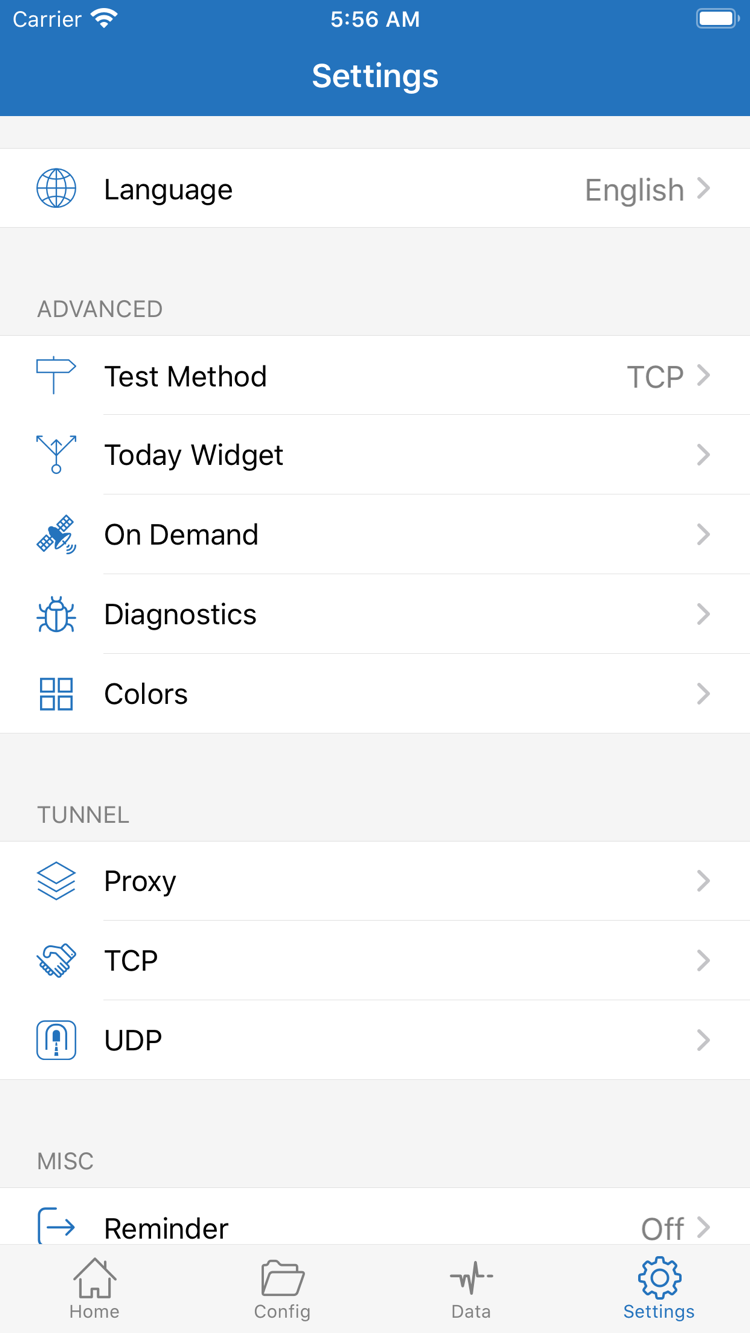
If the connection changes automatically under certain network conditions, check On Demand in Settings. It controls when a connection is triggered based on conditions. For your first manual test, understand whether existing conditions could affect your observations; On Demand is not a general-purpose way to improve connection performance. Avoid changing Proxy, TCP, UDP, and other settings in bulk while troubleshooting for the first time. Record the original value before each change, retest the same destination, and restore the original setting if there is no improvement.
Keep relevant context when using Diagnostics
For further troubleshooting, open Diagnostics in Settings and review the available diagnostic tools in the context of when the failure occurred and which destination was involved. Record the current network, Global Routing mode, selected entry type, and any visible error text. Logs may contain domain names, addresses, authentication details, or subscription credentials; remove sensitive information before sharing them. Do not send a full subscription link or an unchecked configuration file when asking for help.
After basic verification, restore the Global Routing mode you use day to day and check actual access once more. For later changes to DNS, On Demand, logging, or sync, use the same approach: record the original value, change one thing, and verify the result. See the Settings Guide for a fuller explanation, or visit Frequently Asked Questions to troubleshoot by symptom. This completes the initial setup; you do not need to enable every feature at once.
Keep reading: Start with the specific issue, then explore the relevant settings.