 Verify on the App Store
Shadowrocket Official App Store Download
On the App Store Download from the App StoreA paid app with a one-time purchase, available exclusively on the App Store.
Verify the app, then check your account's storefront and purchase details.
- DeveloperShadow Launch Technology Limited
- App ID932747118
- $2.99 one-time purchase · US storefront reference
- For iPhone and iPad
Check the App Store listing for the current price, system requirements, and Universal Purchase availability.
Store / Account
Storefront and Apple ID Account Region
Shadowrocket isn't available in the mainland China storefront. If you can't find it, check the Apple ID currently used for the App Store rather than trying different search terms. Your Apple ID's country or region determines which storefront you see. Your device's location, system language, and account storefront region are separate settings; one doesn't determine the others.
The button on this page links to Shadowrocket's US App Store product page. The us in the URL identifies the web storefront; it doesn't change your account region. Seeing product details in a browser also doesn't mean your account is eligible to purchase. Check the product status and account messages in the App Store to confirm whether you can buy it.
Check your account before troubleshooting restrictions
- Open Settings on your device, tap your name at the top, then tap Media & Purchases.
- Tap View Account, complete any requested account verification, and check Country/Region.
- To make a change, use the option on the same Country/Region page. Review the listed requirements before proceeding.
Menu names may vary between system versions. Always check the store account under Media & Purchases. Your iCloud account and the account used for App Store purchases may differ. After checking the name at the top of Settings, confirm which account is actually used for purchases so you don't mistake the account used for configuration syncing.
Your account balance, active subscriptions, Family Sharing status, payment method, and billing details may affect a region change. Follow the specific instructions shown by Apple, and don't submit repeated requests before you understand the requirements. Whether a region change is possible depends on your account's status. This manual can't guarantee the outcome, and changing regions isn't a universal fix for download problems.
If you can access the right storefront but get stuck at payment or download, save the full error message first. Account verification, payment failures, and device compatibility are different issues. Identifying the type of issue from the message helps preserve useful information before you take action.
Identity / Three checks
Developer, icon, and App ID
Names help you search; these three details help verify the app.
Shadowrocket may also be referred to by a Chinese nickname. Search results can include similar names or icons, so don't rely on a nickname, search ranking, or keywords in a description. On the product page, verify the developer, official icon, and app ID in that order. Once all three match, check the purchase button and compatibility details.
- Developer: Check the full name, Shadow Launch Technology Limited. Don't rely on a single word in the name or mistake a product mentioned in the description for the developer.
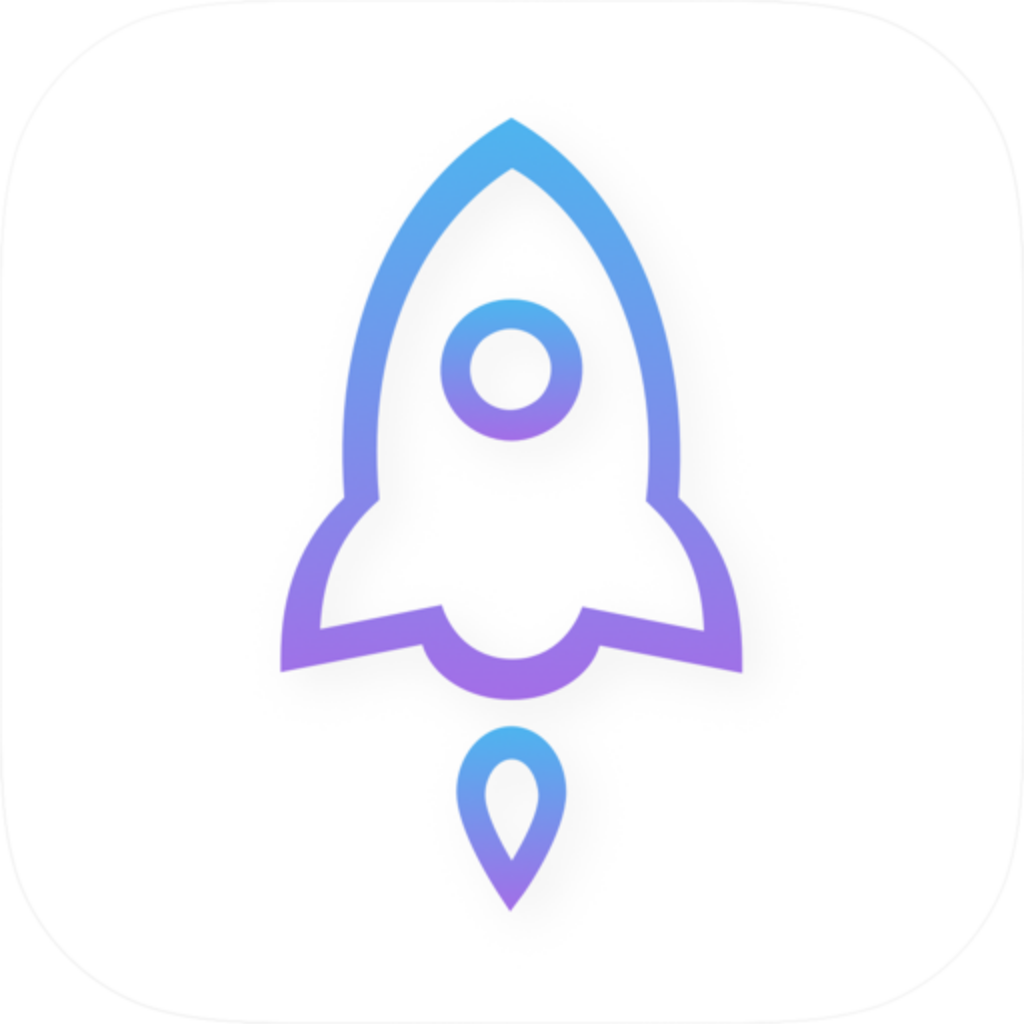
- Official icon: Compare it with the official icon shown on this site: a rocket outlined in blue and purple on a white background. The appearance is one clue; verify it alongside the developer and app ID.
- App ID: Check the product page URL for
id932747118. The numeric ID is932747118. The storefront region in the URL may vary, but it should point to the same app.
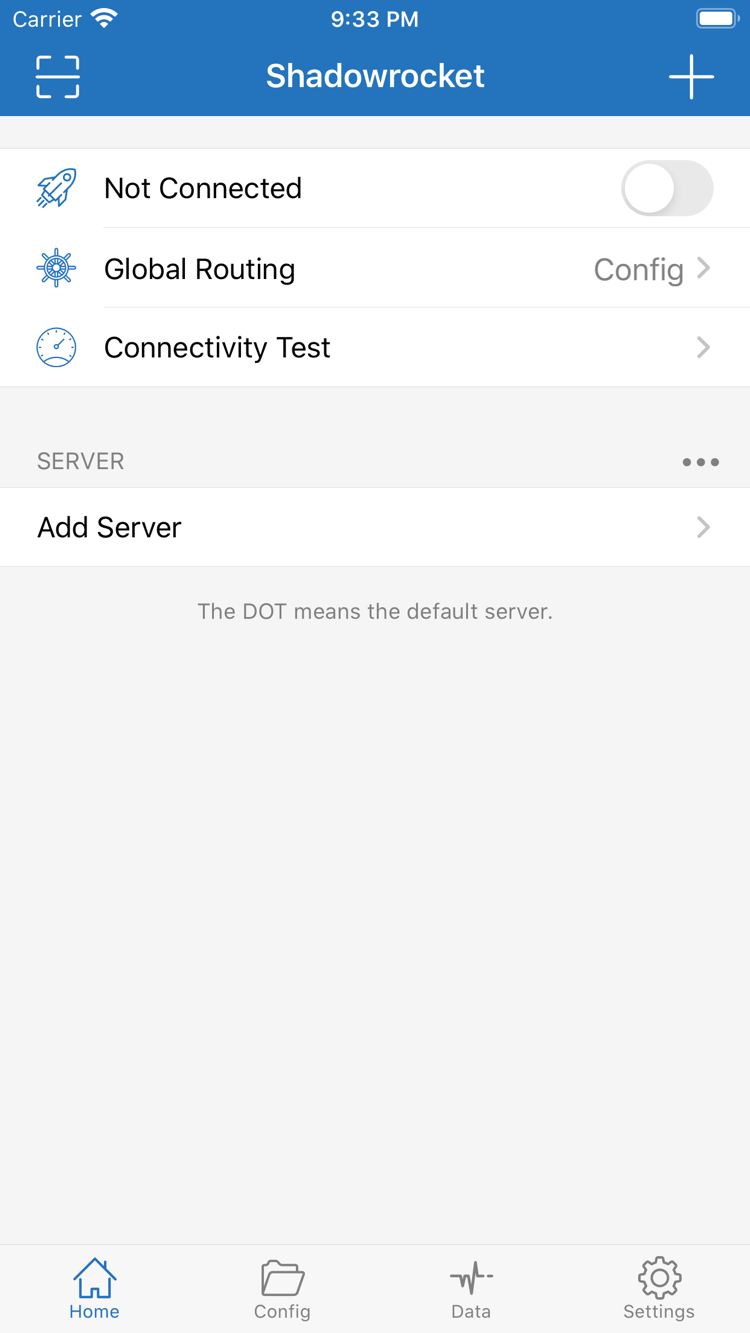
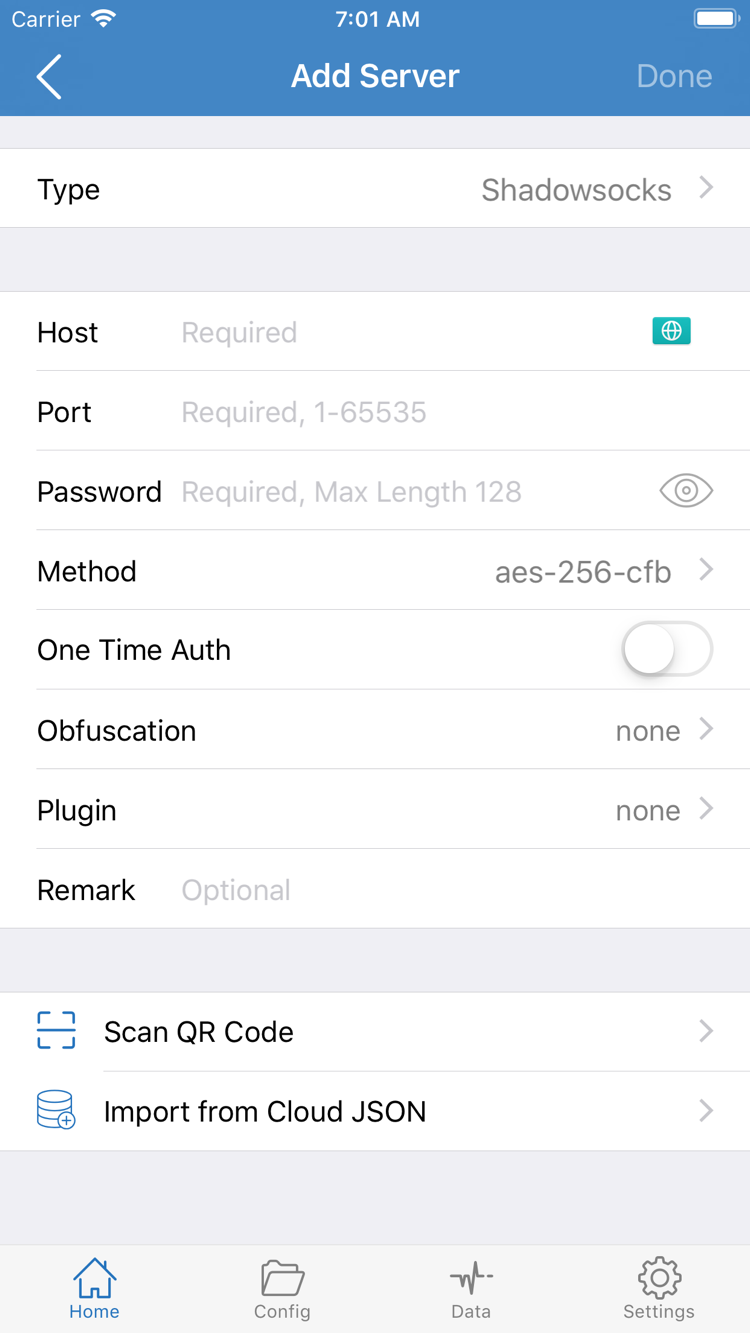
This is the official Shadowrocket site and manual, and the icon shown here is the official artwork. The two images below are official English-interface screenshots uploaded by the developer to the App Store. They show the Home and Add Server screens for reference; they don't show a device's live status or indicate that it's connected.
The Home screenshot shows Not Connected, Global Routing, Connectivity Test, the SERVER group, and the Add Server entry. The Add Server screenshot shows fields such as Type, Host, Port, Password, and Method, with Scan QR Code and Import from Cloud JSON at the bottom. Required fields vary by protocol; enter details from your own server information.
The current app may differ slightly in layout or wording from these screenshots. Refer to the app for what you see now. To verify the app, check the three App Store details rather than expecting every screen element to match exactly. Don't use example information in screenshots as server configuration.
Official icon reference
Verify it alongside the developer and app ID
Device / iPhone
iPhone purchase and first launch
Open the product page on your iPhone. After verifying the app, check the price shown in your storefront and the account used for the purchase. For a first-time purchase, confirm payment through the App Store. If you've already purchased the app, you should usually see a download-again option. Check the App Store listing for system requirements and expand Compatibility before buying to confirm your device is supported.
Once the download is complete, open Shadowrocket from your Home Screen. Opening the app and enabling a connection are separate steps: you can explore the interface and add your existing information first. If the app needs to add a VPN configuration, iOS will show an authorization prompt. Proceed only after confirming you initiated the action, then review the prompt and authenticate as requested.
VPN configuration authorization sets up a connection configuration on your device. It doesn't confirm an App Store purchase or provide a working connection. Even after authorization, you'll need to import your own subscription or server information and check the configuration. If you're not ready to connect, explore Home, Config, and Settings, then continue with the getting-started guide.
After importing, check the current Global Routing option. The configuration, proxy, and direct-connection modes correspond to Config, Proxy, and Direct. Switching modes isn't a fix for every connection issue. First check that the imported data is complete, then confirm that the rules and connection mode suit your needs.
If the app download stays on Waiting, check your device's available storage, network connection, and any pending App Store account prompts. If the download is complete but the connection fails, troubleshoot the configuration instead; these are separate stages. For step-by-step instructions, see the getting-started guide.
Device / iPad
iPad Universal Purchase and compatibility check
Shadowrocket is available for both iPhone and iPad. Once purchased with an Apple ID, sign in to Media & Purchases on your iPad with that same account and download the app again from your App Store purchases. Check the App Store listing for Universal Purchase availability and system requirements. Don't assume the store account is the same just because both devices use the same iCloud account.
The iPad's larger screen may change how lists and details are arranged compared with the iPhone, but you can still find your way using page names such as Home, Add Server, Config, and Settings. When following this manual, look for the page and field names rather than matching screenshot positions pixel by pixel. The layout may also change between portrait and landscape.
App purchase records and app configuration are different types of data. After restoring the app on your iPad, check whether your existing configuration has synced or been restored. If not, import your own subscription or server details. Keep the configuration on your original device until you've confirmed the files are complete; don't delete the original data just because the other device connects.
App Store details for other Apple devices
The compatibility section of the same App Store product page also lists Mac, Apple TV, and Apple Vision. Check the App Store listing for Universal Purchase availability, supported devices, and system requirements. Verify the product details in the App Store on your target device. The product page remains the way to get the app; the iPhone instructions on this page don't necessarily apply to other devices.
Purchase / Restore
New device, reinstall, and purchased items
When you get a new iPhone, use Shadowrocket on an iPad, or reinstall the app, first look for the original App Store purchase. Purchase rights are tied to the Apple ID used for the purchase, not to whether the device is new. Sign in with the original account and download Shadowrocket again from your purchased items without paying again. Check compatibility to confirm the app can run on your device.
- Open the App Store, tap the account icon in the upper-right corner, and confirm which account is used for purchases.
- Go to Purchased and look for Shadowrocket. Depending on your system version, you may find purchase history under an entry such as Apps; follow the options shown on your device.
- Once you find the app, verify the developer and icon, then tap the redownload option to install it.
- After opening the app, check your local configuration, existing subscriptions, and server information before handling connection authorization or connecting.
If you see a price, don't pay again just yet
If you remember buying the app but the product page still shows a price, first check whether the account under Media & Purchases is the one used for the original purchase. Then review your purchase history. A purchase made with another account, a change of storefront region, or a hidden purchase can all affect what you find. Confirm which account owns the purchase before deciding what to do; paying again isn't the way to restore it.
If you can't find the purchase, check your Apple account's purchase history and support options on your device. When describing the issue, specify whether the purchased item is missing or the redownload is failing, and keep any system messages. Handle payment, account, and app configuration issues separately; a configuration backup isn't proof of purchase.
After restoring the app, restore your configuration too
Redownloading restores the app itself. It doesn't guarantee that subscription links, rule files, or server details will be restored to your new device. If you enabled syncing or made an export backup, check the result first; otherwise, import your saved subscription or server information. Keep the original data before migrating, and remember that subscription links may contain access credentials. Don't share them publicly.
To check whether Family Sharing applies, review the App Store listing and Apple's Family Sharing rules, then consider your family group settings. Family Sharing isn't guaranteed to restore purchases for every account. The clearest way to verify a purchase is still to check the original purchasing account and its purchase history.
Price / Scope
One-time purchase: price and terms
Shadowrocket is a paid commercial app. The US storefront reference price is $2.99 as a one-time purchase; there is no monthly fee to use the client. Prices are shown in local currency by storefront. Check the App Store page before paying for the current amount, taxes, and purchase availability. Prices in other regions may not match the final charge to your account.
Buying the app gives you access to the client; an existing subscription is a separate source of configuration data. Check their status separately. An App Store purchase doesn't prove that a subscription is still active, and an importable subscription doesn't replace the App Store purchase. Identifying which stage you're at can help avoid unnecessary repurchases and repeated imports.
App updates are delivered through the App Store and can be managed in your device's app update settings. To check new features or compatibility changes, review the update history on the App Store page and the current in-app information. This page doesn't list fixed version numbers or release dates, so outdated details aren't mistaken for purchase or installation requirements.
Before buying, check each item in order: confirm your storefront region, verify the developer, icon, and app ID, check device compatibility, then review the current price and complete the purchase. Afterward, keep your purchase record and configuration backup. They serve different purposes—restoring the app and restoring your setup—and shouldn't be treated as the same thing.
Purchase / Questions
Download and purchase FAQ
Why can't I find Shadowrocket in the App Store?
Shadowrocket isn't available in the mainland China storefront. Your Apple ID's country or region determines which storefront you can access. Check it under Settings → Apple ID → Media & Purchases → View Account → Country/Region. The “us” in the product page URL doesn't change your account's region or guarantee that you can make a purchase.
Why can't I download Shadowrocket even though I can see its product page?
Note the full App Store message, then check the account used for Media & Purchases, storefront region, payment status, available device storage, and network connection. Check the App Store listing for compatibility and system requirements. For payment or account restrictions, use Apple's account support options.
Do I have to pay again when I get a new iPhone or reinstall the app?
On the App Store, sign in with the Apple ID used for the original purchase, find Shadowrocket under Account → Purchased, and download it again. You won't be charged again. If a price appears, check your purchase history and current storefront account before proceeding. After reinstalling, restore your own configuration or import an existing subscription.
Can I use the same purchase on iPad?
Shadowrocket is available for both iPhone and iPad. On your iPad, use the Apple ID that made the original purchase in Media & Purchases, then download the app again from your purchased items. Check the App Store listing for system requirements and Universal Purchase availability. App purchase records and local configuration data are managed separately, so check that your configuration has been restored after installation.
Can I install Shadowrocket on Mac, Apple TV, or Apple Vision?
The compatibility section of the same App Store listing includes Mac, Apple TV, and Apple Vision. Check the listing on your device. Refer to the App Store for Universal Purchase availability and system requirements. Shadowrocket is available through the App Store.
How do I follow the instructions if the app is in English?
This manual keeps interface labels such as Home, Add Server, Config, and Global Routing in English. Match the page names and field positions against the official screenshots, then read the getting-started guide. The interface language alone doesn't verify the app. Check the developer, official icon, and app ID.